
September 7, 2026
v0.82: Import Your Finances with ChatGPT & Claude
Hal v0.82 lets you copy and paste Hal’s instructions into ChatGPT or Claude with your bank statement, then upload the resulting CSV to Hal.
Authors: Ryusei Best
1. Overview
Copy and paste Hal’s instructions into ChatGPT or Claude with your bank statement, then upload the resulting CSV to Hal.
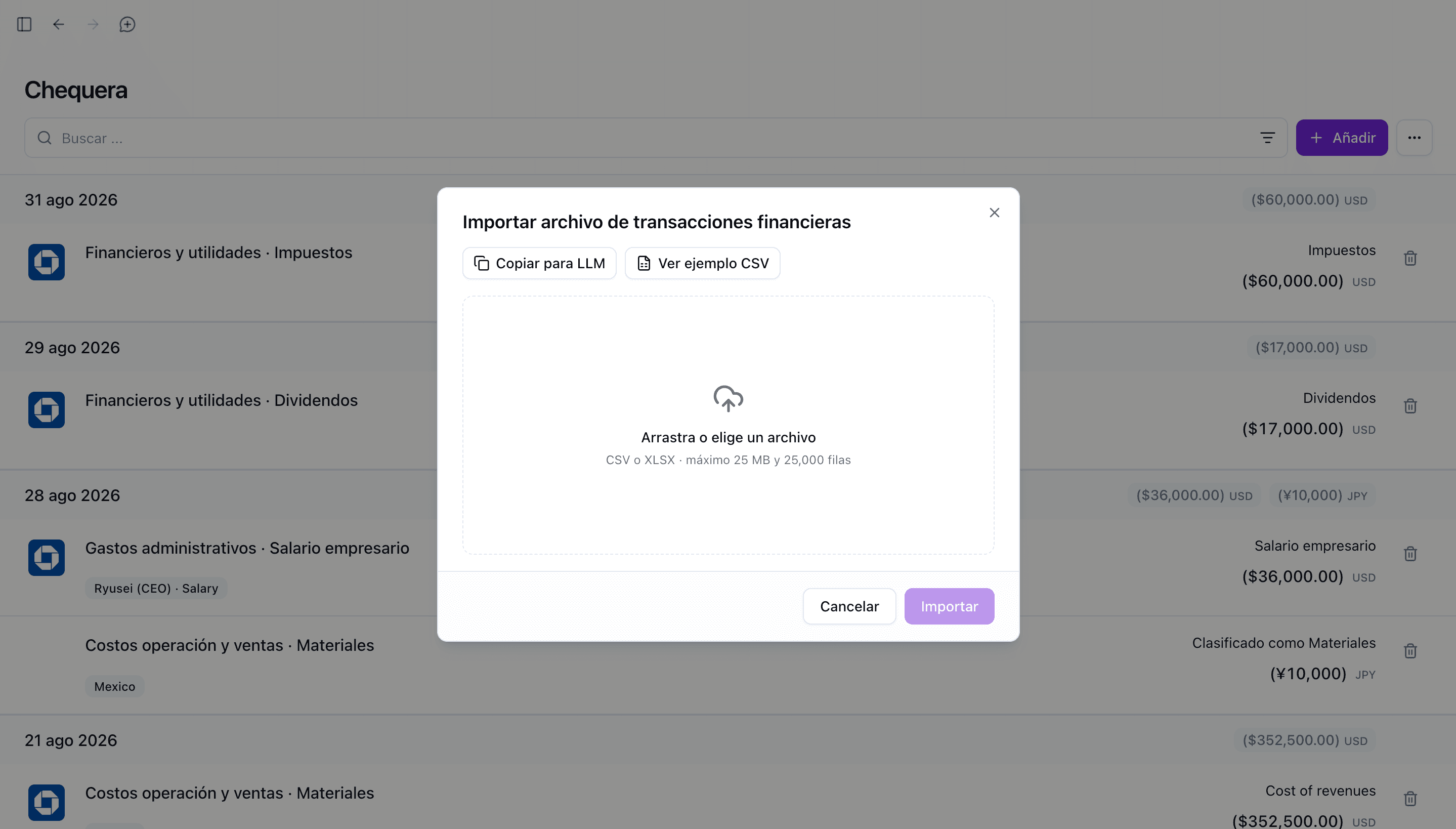
Hal v0.82 introduces the new Copy for LLM button in the financial-transaction import workflow. It prepares the instructions you need to use ChatGPT or Claude (LLMs) to organize the statement as a CSV file that you can upload to Hal.
For founders, this creates a practical bridge between the transactions already recorded by the bank and the financial view needed to run the company. Instead of rebuilding a month of activity line by line, you can prepare the import with tools you may already use and bring the resulting file into Hal for review and classification.
2. Bring your real numbers into view
Your bank statement contains the movements behind the company’s cash position: money collected, operating expenses, account transfers, debt payments, and other transactions. Bringing those records into Hal gives you a stronger foundation for understanding where the company’s money went, keeping balances current, and making the next decision with a more complete view.
We built Copy for LLM to make that starting path clearer. Hal prepares the instructions, ChatGPT or Claude structures the statement into a CSV, and Hal imports that CSV into your financial workflow. You remain in control of the review, while moving from a bank document to useful business information with fewer manual steps.
3. How it works
1. Open Chequera in Hal and start the financial-transaction import workflow. 2. Select Copiar para LLM. Hal copies the prepared instructions you will use to create the import file. 3. Open ChatGPT or Claude and paste the instructions into the conversation. 4. Attach the bank statement you want to process. 5. Ask ChatGPT or Claude to follow the copied instructions and produce the CSV. 6. Download the CSV and review the dates, descriptions, amounts, and rows against the bank statement so the file reflects the movements you want to import. 7. Return to Hal, upload the CSV in the transaction importer, and continue reviewing and classifying the imported finances for your company.
You can repeat this workflow for the statements you need to bring into your financial view. Keeping each CSV aligned with its source statement makes the review straightforward and helps your dashboards and analysis begin with organized transaction data.
4. Try the new feature
Choose a bank statement, open the importer, and select Copiar para LLM. Once the CSV is ready and reviewed, upload it to Hal and continue turning those transactions into a current view of your company’s money.
Open Hal and try Copy for LLM to bring your bank-statement transactions into your financial workflow.